

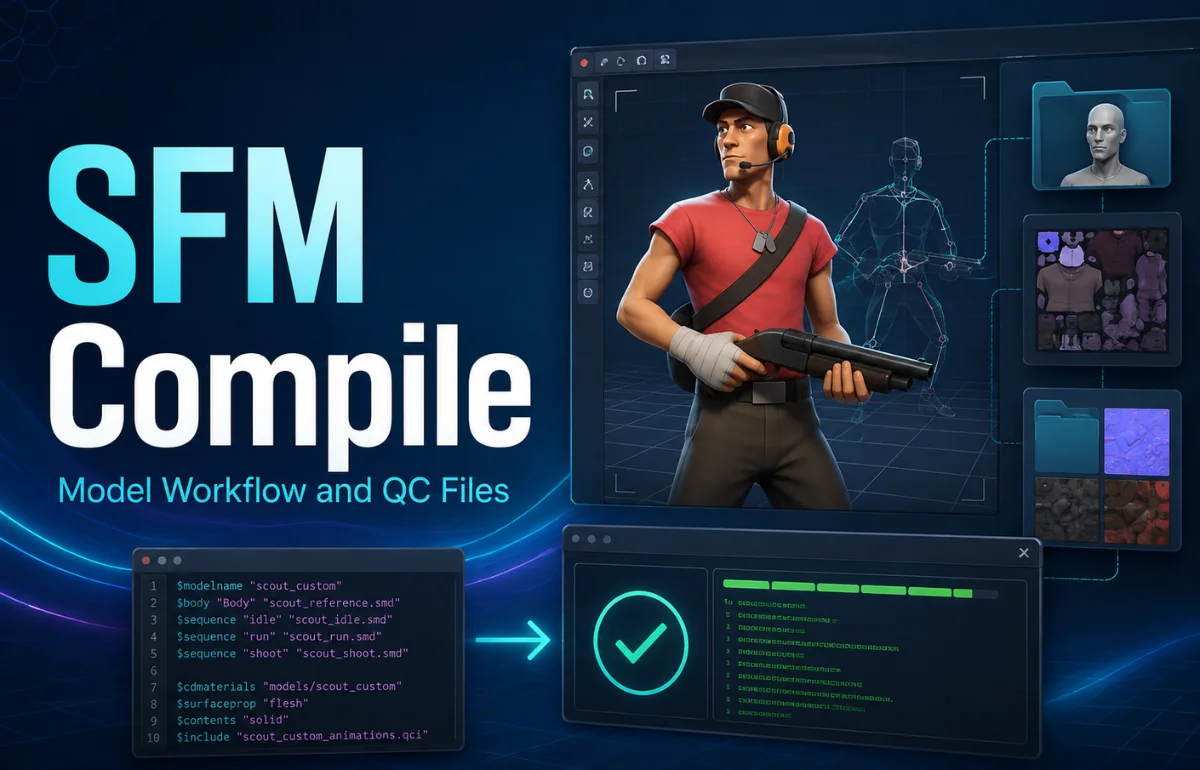
Source Filmmaker (SFM) gives creators a powerful environment for making animated scenes, posters, short films, and cinematic sequences. However, working with custom models can introduce a technical step that is unfamiliar to people coming from Blender, Maya, or other modern 3D applications: compilation.
The term SFM compile generally refers to preparing custom assets so the Source engine can load and use them. For models, this typically means taking exported source files such as SMD or DMX files, describing how they should be assembled through a QC script, and processing them with Source’s model compiler. Valve’s documentation describes StudioMDL as the command-line tool used to compile models from intermediate formats into the binary MDL format read by the Source engine.
Understanding this workflow makes custom-model problems much easier to diagnose. Instead of treating compilation as a mysterious final step, it helps to see it as a translation process between your 3D project and the Source engine.
What Does SFM Compile Mean?
In simple terms, SFM compile is the process of converting source model data into a format that Source Filmmaker can use.
A model created in Blender, for example, does not automatically become an SFM-ready asset simply because it looks correct in Blender. The geometry, skeleton, materials, animations, and other information must be exported and organized in a way that the Source engine understands.
A typical model workflow looks something like this:
3D model → SMD/DMX files → QC script → StudioMDL or Crowbar → compiled model → Source Filmmaker
Valve identifies StudioMDL as the tool responsible for compiling models into .mdl files. The compiler accepts a QC file as its required model-definition input.
The compilation stage therefore acts as a bridge between the editable assets created by an artist and the files required by SFM.
Why Do Models Need to Be Compiled for SFM?
Modern 3D applications often allow users to open project files directly or import common formats with relatively little preparation. Source Filmmaker uses a different workflow because it is built around Valve’s Source engine.
A custom model needs appropriate engine-compatible data for things such as:
- Geometry
- Bones and rigging
- Materials
- Animations
- Model paths
- Bodygroups
- Collision information when applicable
- Level-of-detail settings
The QC file provides instructions that tell the compiler how these pieces should be assembled.
Valve’s Source SDK documentation similarly separates model source files such as SMD, DMX, and QC from compiled model content such as MDL and VTX files.
This is why copying an ordinary Blender project into an SFM directory does not make it immediately available in the model browser.
The Main Files Used in an SFM Compile
Understanding the individual file types is one of the easiest ways to make the workflow less confusing.
SMD and DMX Files
SMD and DMX are commonly used as intermediate formats in Source model workflows.
They can contain information exported from a 3D modeling application, depending on how the asset is structured. A complex character may have separate exported files for different parts of the model or different animation data.
For example, a character might be organized into SFM Compile files representing the body, head, clothing, and animations.
Those files are then referenced by the QC script.
QC Files
The QC file is essentially the instruction sheet for the model compiler.
It can specify information such as:
- Where the final model should be created
- Which SMD or DMX files should be used
- Which materials directory should be searched
- What animations should be included
- How bodygroups should be organized
- Other model-specific compilation settings
A simplified QC structure might look like this:
$modelname "characters/example/example.mdl"
$body "body" "body.dmx"
$cdmaterials "models/characters/example"
$sequence "idle" "body.dmx"
This is only an illustrative example. A real character may require considerably more commands depending on its rig, animations, materials, flexes, and other features.
Steam Community guidance for SFM users likewise describes exporting models as DMX or SMD, creating a QC file, and compiling it through StudioMDL or Crowbar.
MDL Files
The .mdl file is the primary compiled model file that Source uses.
It is not necessarily the only file associated with a compiled model. Supporting files can also be generated depending on the model and Source branch being used.
That is why moving only one file from a compiled model’s output can sometimes result in an incomplete asset.
StudioMDL and Crowbar: What’s the Difference?
Two names appear frequently when people research SFM compilation: StudioMDL and Crowbar.
StudioMDL is Valve’s model compiler. Valve’s documentation describes it as a command-line program that takes intermediate model formats and produces the binary MDL format used by Source.
Crowbar, meanwhile, is a commonly used graphical utility in the Source modding community that can make compiling and decompiling models easier.
For a beginner, the difference can be thought of this way:
StudioMDL is the underlying compiler, while Crowbar provides a more convenient interface for working with Source model compilation and related tasks.
The important part is not which interface you prefer. What matters is that the compiler is configured for the appropriate Source game and that the QC file points to the correct source assets.
How to Compile a Model for Source Filmmaker
The exact process depends on the model and the software used to create it, but the general workflow is consistent.
Step 1: Prepare the Model
Start by making sure the model is actually ready for export.
Check the mesh, materials, UVs, skeleton, weights, and animations before worrying about compilation.
A compiler cannot automatically fix fundamental modeling problems. If the character has broken geometry or incorrect bone assignments in the original 3D application, compiling it will not magically correct those problems.
Step 2: Export the Model
Use an appropriate Source-compatible export workflow from your modeling software.
For Blender users, this commonly means exporting through a Source-related tool into SMD or DMX.
The resulting files become the inputs referenced by the QC script.
Step 3: Prepare the Textures and Materials
Model compilation and texture preparation are related but are not exactly the same operation.
Source materials commonly involve VMT material files and VTF texture files. Valve’s documentation distinguishes compiled model content from material content and places these resources in different parts of the Source directory structure.
This distinction matters when troubleshooting.
If the model appears but has purple-and-black checkerboard textures, for example, the model itself may have compiled successfully while the material paths or texture files are incorrect.
Step 4: Create the QC File
Create a QC file that references your model source files and defines how the finished model should be built.
The $modelname command determines the output model path, while commands such as $body, $bodygroup, $cdmaterials, and $sequence can define other aspects of the asset.
The exact QC structure depends heavily on whether you’re compiling a static prop, character, animated model, or more complicated asset.
Step 5: Compile the QC File
With the QC file prepared, run it through StudioMDL or a compatible interface such as Crowbar.
Valve documents the basic StudioMDL syntax as:
studiomdl [options] <path\QC>The QC file is the required argument, while additional options can control the compilation process.
When using a graphical tool, the same underlying idea applies: select the QC file, select the appropriate game/compiler configuration, and start the compilation.
Step 6: Read the Compile Log
Do not ignore the compiler output when something goes wrong.
The compile log is often the fastest way to identify the actual problem.
An error may tell you that:
- A referenced file cannot be found
- A material is missing
- A QC command is invalid
- A model contains unsupported data
- A path is incorrect
- An animation cannot be loaded
Community troubleshooting guidance for SFM specifically recommends examining the compile output because it can identify the file or QC line that caused compilation to stop.
Step 7: Test the Model in SFM
Once compilation completes, place the resulting files in the appropriate SFM game directory and launch Source Filmmaker.
Open the model browser and check whether the model loads correctly.
Do not stop at simply seeing the character appear. Test the things that matter:
- Does the model have its textures?
- Do the bones behave correctly?
- Do animations work?
- Are facial controls available if applicable?
- Are bodygroups working?
- Are props attached correctly?
- Does the model behave properly when posed?
A successful compile is not necessarily the same thing as a perfectly functioning asset.
Common SFM Compile Problems
Compilation errors can look intimidating, but many are caused by straightforward file or configuration problems.
The Model Does Not Appear
First check the output path and model name.
If the compiled model was written somewhere unexpected, SFM may simply be looking in a different directory.
Also verify that the relevant model files are inside a game directory that SFM can access.
Purple-and-Black Textures
The familiar checkerboard appearance usually points toward a material or texture problem rather than automatically proving that the model compile failed.
Check:
$cdmaterialspaths- VMT filenames
- VTF filenames
- Material folder locations
- Capitalization and spelling
- References inside VMT files
A model can compile successfully while its materials remain incorrectly configured.
Missing SMD or DMX Files
If the QC references a file that does not exist at the expected location, the compiler cannot build that part of the model.
Check every filename in the QC against the actual exported files.
This becomes especially important when exporting a complex Blender scene containing many separate objects.
The Model Is Stuck in a T-Pose
A T-pose or similar animation problem may indicate that the model’s animation data, skeleton, or QC configuration needs attention.
Do not automatically assume the compiler itself is broken.
Check whether the intended animation files were exported correctly and whether the QC file references them properly.
The Model Has Broken Materials
When materials appear incorrectly, inspect the entire path from the 3D application to SFM.
A material name in the modeling application may not be enough by itself. The corresponding Source material files and their paths also need to be correct.
Should You Use SMD or DMX?
There is no universal answer for every project.
Both formats can be used in Source workflows, and the best choice depends on the asset, export tools, and specific features involved.
For many beginners, the more important issue is consistency. Pick a workflow that is supported by your modeling tools and follow the same file structure from export through compilation.
Changing formats halfway through a project can introduce another variable when troubleshooting.
SFM Compile vs. Rendering an SFM Video
There is another source of confusion around the phrase SFM compile.
Some people use “compile” loosely when discussing the final rendering or exporting of an SFM animation. Technically, however, model compilation and final movie rendering are different stages.
Model compilation prepares assets for use by the Source engine.
Rendering or exporting takes a completed SFM scene and produces the final visual output.
For example, you might first compile a custom character so SFM can use it. After animating that character, you can then render the finished scene.
Keeping those two processes separate makes troubleshooting much easier.
If the character cannot load, investigate the asset pipeline. If the character loads correctly but the final video has rendering problems, investigate the scene and rendering settings instead.
A Simple SFM Compile Checklist
Before compiling:
- Check the model’s geometry.
- Verify the skeleton and weights.
- Confirm that required animations exist.
- Export the necessary SMD or DMX files.
- Prepare the Source materials.
- Check texture filenames and paths.
- Create the QC file.
- Verify every filename referenced by the QC.
During compilation:
- Use the correct Source/SFM compiler.
- Watch the compile log.
- Pay attention to warnings and errors.
- Confirm the intended output directory.
After compilation:
- Check that the model files were generated.
- Confirm that SFM can find the model.
- Test materials.
- Test bones and animations.
- Test bodygroups and facial controls where applicable.
This simple checklist catches many problems before they become difficult to diagnose.
Why File Organization Matters
A clean folder structure can save considerable time.
Instead of keeping exported models, QC files, textures, and unrelated project files in one large directory, organize them according to the paths used by Source.
For example, a project might separate model and material resources into appropriate folders under the SFM game directory.
Valve’s Source SDK documentation illustrates this broader separation between model source files, compiled model content, and material resources.
Good organization also makes it easier to identify missing files when a compile fails.
Tips for a More Reliable SFM Workflow
The easiest way to reduce compilation problems is to avoid changing too many things at once.
Start with a simple test asset. Make sure a basic model compiles and loads correctly before introducing complex animations, facial flexes, multiple bodygroups, or complicated materials.
Keep backups of working QC files. When a new change causes a compile failure, you can compare it with the last known-good version.
It is also useful to read errors literally. If the compiler says it cannot find body.dmx, start by checking whether body.dmx exists and whether the path is correct. There is no benefit in changing unrelated settings before checking the direct error.
Finally, remember that SFM compilation is part of an asset pipeline rather than a single magic conversion button. Understanding how the files relate to one another is more valuable than memorizing one particular tutorial.
Frequently Asked Questions About SFM Compile
What is SFM compile?
SFM compile generally means converting or preparing custom Source Filmmaker assets into formats that the Source engine can load. For models, the process commonly involves SMD or DMX files, a QC script, and the StudioMDL compiler.
Can Blender models be compiled for SFM?
Yes. Blender can be used as part of an SFM model workflow. The model generally needs to be exported into a Source-compatible intermediate format and then compiled using the appropriate QC and Source tools.
What does a QC file do in SFM?
A QC file provides instructions to the model compiler. It can define the output model name, source meshes, materials, animations, bodygroups, and other model properties.
What is StudioMDL?
StudioMDL is Valve’s Source model compiler. It converts intermediate model data described by a QC file into a compiled model format that the Source engine can read.
Is Crowbar required for SFM compilation?
No single third-party interface is inherently required. StudioMDL is Valve’s model compiler, while Crowbar is a commonly used tool that provides a convenient interface for Source model compilation and related tasks.
Why is my SFM model invisible after compiling?
Check the compiled model’s location, the $modelname path, the SFM game directory, and the model browser’s search settings. If the model is found but does not display correctly, inspect the compile log and the model’s source data.
Why does my SFM model have purple-and-black textures?
This usually points toward a material or texture path problem. Check the VMT/VTF files, material directories, filenames, and the $cdmaterials configuration.
Can multiple SMD or DMX files be used for one model?
Yes. A model can be assembled from multiple source files through the QC script. SFM community examples show separate exported pieces being combined through QC commands such as $body and $bodygroup.
Does compiling fix a broken 3D model?
No. Compilation converts and packages the asset according to the compiler instructions, but it does not replace proper modeling, rigging, weighting, UV mapping, or animation work.
What should I check first when an SFM compile fails?
Start with the compile log. Look for the first actual error, then verify the referenced file, path, QC command, or asset. Fixing the first meaningful error is generally more useful than changing several settings simultaneously.
Conclusion
Learning SFM compile is an important step for anyone who wants to move beyond the standard assets included with Source Filmmaker.
The process may initially seem complicated because it involves several file types and tools, but the basic concept is straightforward: create or export the source assets, define how they should be assembled in a QC file, compile them with the appropriate Source model compiler, and then test the finished asset inside SFM.
Once you understand the roles of SMD or DMX files, QC scripts, StudioMDL, materials, and the compiled model files, troubleshooting becomes much more systematic. Instead of guessing when a custom character fails to load, you can trace the problem back through the asset pipeline and identify exactly where something went wrong.
For new SFM creators, the best approach is to start small, keep the file structure organized, read compiler errors carefully, and test each stage before adding more complexity. That foundation makes the process of bringing custom models into Source Filmmaker far more manageable.

1 Comment
Pingback: SFMCompile Explained: A Practical Guide to Source Filmmaker Compilation